AlgoLaser Alpha MK2 40W Review: Is 40 Watts Too Much?
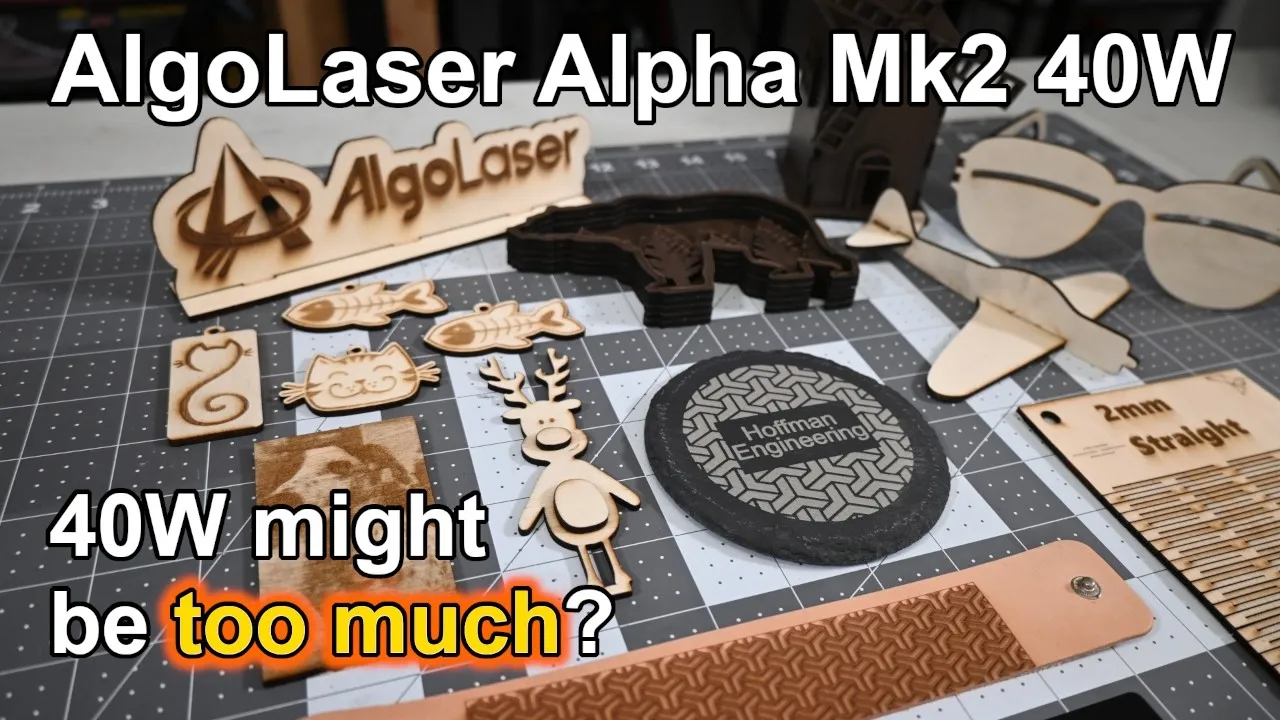
A fast, approachable open-frame cutting machine for someone who mainly wants to cut plywood and acrylic and color mark stainless steel. If fine photo engraving is your main goal, look at the 20W version instead.
Check price at AlgoLaserOn this page
The AlgoLaser Alpha MK2 40W cuts 3mm birch plywood at over a thousand millimeters a minute in a single pass, and it pulls blues, purples and oranges out of stainless steel. It’s one of the fastest cutting diode lasers I’ve had on my bench. But big power means a big laser dot, so this AlgoLaser Alpha MK2 40W review covers fifty jobs across six materials to find out whether forty watts is the right amount of laser for you.
What the AlgoLaser Alpha MK2 40W Is
The Alpha MK2 is an open-frame diode laser engraver and cutter. AlgoLaser sells it in 20W and 40W versions on the same frame. The 40W is the flagship, and it’s the one you buy if you want to cut.
The number that matters most is the spot size: 0.175 by 0.15 millimeters. That is a big laser dot, and it’s the tradeoff you make for the power. Keep it in mind, because it shapes almost every result below.
The work area is 400 by 386 millimeters. AlgoLaser rates the machine at 20,000 millimeters per minute for engraving, with travel moves up to 30,000.
I tested the Basic kit, which adds a honeycomb platform and a rotary roller to the bare machine.
Assembly: Thirty Minutes, Then Tension the Belts
You screw the frame together, attach the X-axis gantry across the top, slide in the laser module, and plug in the cables. It took me about thirty minutes from opening the box to running my first job, which is faster than most benchtop diode lasers I’ve built. The belts are already on the machine and the cables come pre-routed, so you skip two of the most tedious parts of a laser build.
One thing to watch. The belts are installed, but they’re loose out of the box. Skip the tensioning and you’ll get sloppy corners and ovals where you wanted circles, and you’ll spend an hour blaming your settings. Tension the belts first.
Automatic Air Assist and Noise
Air assist is a jet of air aimed at the cut point. It clears smoke and debris, which gives you deeper cuts and cleaner edges. It’s one of the reasons this machine cuts as well as it does.
What’s different here is that the compressor is controlled through the software. The laser turns the airflow up and down on its own depending on the material. In a month of testing I never overrode the automatic settings, and I never looked at a cut and wished I had. There’s a small control panel on the cable if you want manual control.
The compressor isn’t the loudest part of the machine. At full power, the laser module’s fans are slightly louder. I measured 65 decibels from a few feet away, and I was comfortable working around it without hearing protection.
The 40W Laser Module and Manual Focus
You don’t get forty watts of optical output from one diode. AlgoLaser combines eight of them, 5.5 watts each, into a single beam, and rates the head at over ten thousand hours of life. At ten hours a week, that’s close to twenty years.
Focus is manual, which is disappointing at this price. You lower the probe, release the lever, slide the module down until the probe touches the material, and lock it again. It takes a few seconds, and the lever beats the tiny thumbscrews many lasers use. But on a machine with a touchscreen, automatic air assist, and a material library, autofocus feels like an obvious omission.
A few smaller notes:
- The bottom window is magnetic and pops off, so cleaning the lens is easy.
- The nozzle isn’t perfectly centered in the module. I added a couple of marks to the module to help me eyeball the beam location.
- The LEDs on the front change color with the power level, so you can tell from across the room how hard it’s running.
Vibration and Tilt Detection
Both safety sensors have adjustable sensitivity. The tilt sensor shuts the machine down if it gets knocked over, and it triggered reliably between roughly twenty and forty-five degrees depending on the setting.
Vibration detection was less successful. The machine weighs eighteen and a half pounds, and its fast initial moves repeatedly tripped the sensor before some jobs started. I eventually turned it off. I didn’t spend much time tuning the sensitivity, so there may be a workable setting.
Put this machine on a heavy, stable bench either way. Fast direction changes can shake both the frame and your engraving. If you’re a beginner, leave the vibration sensor on unless it becomes a consistent problem.
AlgoOS: Run It From the Touchscreen
AlgoLaser gives you three ways to run this machine, and the first one doesn’t need a computer.
AlgoOS is the operating system built into the touchscreen. It includes more than fifty ready-made projects, and I ran around twenty of them straight from the screen. You can also add text or draw simple designs on the machine itself.
The standout feature is the material library. Choose a material, compare a grid of tested speed and power combinations, and pick the result you want. It removes the most confusing part of a beginner’s first day, which is figuring out what settings to use. I’d happily steal this feature for every other laser I own.
LightBurn and the ALARM 2 Soft Limit Fix
For more control, LightBurn worked great across all of my tests. No config files were provided, but you don’t need them. Select a new GRBL device, set the work area dimensions, and you’re running. LaserGRBL is free and works fine too.
I did hit one snag. I usually position the head by hand and use “Start from Current Position.” Every time, the laser moved an inch and stopped with an ALARM 2 error. That’s a soft limit error: GRBL keeps an invisible fence around the work area, and it thought the job was going to cross it.
The cause is how soft limits interact with Current Position. When you move the head by hand, GRBL doesn’t know its new location. Depending on the job origin, it can think the job is heading into negative coordinates. A bottom-left origin can work, but the other origins fail, and even bottom-left can fail if engraving overscan extends past the starting point.
AlgoLaser recommended Absolute Position mode, or jogging the head into place with LightBurn’s Move panel, which keeps the machine coordinates updated.
My workaround was entering $20=0 in the LightBurn console. That disables soft limits and let my usual workflow run normally. It also removes the software boundary that keeps the head from hitting the frame, so use it carefully. $20=1 turns the limits back on.
The third option is the AlgoLaser mobile app over WiFi, with a beginner mode and an advanced mode. It connected, controlled the machine, and sent jobs without trouble, but I went back to LightBurn for most of my work.
Basic Kit and Optional Accessories
The Basic kit includes a honeycomb bed with six hold-down clamps and a rotary roller. I consider the honeycomb essential for cutting, and the clamps are a welcome addition. The rotary roller handles tumblers, bottles, and dowels, and its rollers slide easily to fit different diameters, so setup is quick.
Beyond that, AlgoLaser sells a LightBurn camera, an extension kit for larger material, a smoke purifier, and a smart enclosure. If I were spending more on this machine, the money would go to the enclosure and the purifier first.
One heads-up before you buy both: AlgoLaser says the rotary and the enclosure can’t run at the same time.
Safety: Open Frame at 40 Watts
The Alpha MK2 is open frame. Nothing contains the light, and nothing contains the fumes. An open-frame laser can cause permanent eye damage from direct or reflected light, and this is the same beam that cuts plywood in a single pass. Wear laser safety glasses rated for the laser’s wavelength every time, keep other people out of the area, and don’t walk away while it’s running.
Then there’s the smoke. I run this in an open-air workshop with fans pushing the fumes outside. That isn’t filtering anything. It’s moving the smoke out of the building. If your laser lives in a spare bedroom or a closed garage, a fan won’t be enough.
That’s why the enclosure and smoke purifier come before the camera or the extension kit. They’re the first steps toward making an open-frame 40W laser practical indoors, although you still need proper ventilation or filtration.
Wood: Fast Cuts, Softer Photos
Wood is where the forty watts shows off. I cut 3mm birch plywood at 1,050 millimeters per minute in a single pass. For a diode laser, that is fast, and the cuts are clean.
My kerf measured 0.14 millimeters, which is wide, and that brings us back to the spot size. For most cutting jobs and for big, bold engraving, you’ll never notice. But a photo depends on tiny differences between neighboring pixels, and the dot is too big to resolve them. My photo engraving came out softer than I’d like. It’s not bad. It’s not sharp either, and if photo engraving is why you’re buying a laser, it will bother you.
I haven’t tested the 20W version, so I can’t give you a head-to-head. But AlgoLaser publishes the spot size for both, and the 20W module’s is smaller. Smaller dot, finer detail. If photo work is your main goal, that’s the version I’d look at.
The sample projects were a different story. The twenty or so I ran from the touchscreen all came out sharp, and most of the keychains took a minute or two.
Acrylic: Glossy Edges, Wavy Fast Lines
A blue diode laser can’t directly cut clear acrylic, but it works great on dark colors. I cut 3mm black acrylic at 600 millimeters per minute in a single pass, and the edges came out glossy.
Fast vector lines were another story. At 8,000 millimeters per minute, the ruler marks on my keychains came out wavy as the machine shook through rapid direction changes. Dropping the engraving speed to 2,000 cleaned them up, at the cost of a slower operation.
Leather, Slate, and Coated Aluminum
These three mostly taught me the same thing: turn the power down.
- Leather: Veg tan leather engraved cleanly at 6,000 millimeters per minute and only 22.5 percent power. Go much higher and the edges start to darken.
- Slate: The exception. This slate coaster ran at 15,000 millimeters per minute and full power.
- Coated aluminum: I started at 60 percent and put enough heat into the aluminum card to warp it. At 30 percent, the results were clean and sharp.
On most diode lasers you fight for more power. On this one, you often fight to use less.
Stainless Steel Color Marking
Stainless steel is where this machine won me over.
The laser creates a thin oxide layer on the steel, and different combinations of heat and line spacing produce different colors. I got blue, brown, orange, and purple out of one sheet of stainless steel. AlgoLaser claims more than five hundred possible shades. I didn’t count them, but even a small test grid produced a surprisingly wide range.
I didn’t expect to spend a whole afternoon on this, and I’m not done with it. It’s the reason the machine is staying on my bench.
Verdict: Should You Buy the AlgoLaser Alpha MK2 40W?
The Alpha MK2 40W is a fast, approachable cutting machine. The touchscreen material library and automatic air assist make it unusually easy for a first-time owner, and LightBurn gives experienced users full control. Across fifty jobs, nothing broke, loosened, or needed adjustment after setup. I can recommend it to someone who primarily wants to cut and wants a machine that’s easy to start using.
Forty watts is not automatically better, though. The larger spot is excellent for plywood, acrylic, bold graphics, and stainless colors, but it softens fine photo engraving. My biggest complaints are the lack of autofocus and the Current Position soft limit problem. The sensitive vibration sensor and the off-center nozzle were smaller issues.
On price, the bare 40W machine is $999 and the Basic kit is $1,149 as I write this. I’d choose the Basic kit, because the honeycomb is essential for cutting. The more important comparison is the 20W model. At the time of the review it started at $629, and its Safe kit with an enclosure was $959, which is less than the bare 40W machine. Buy the 40W for fast one-pass cutting and stainless colors. Buy the 20W for finer engraving, lower cost, or an enclosed setup. Don’t pay more only because forty is a bigger number than twenty.
Check the latest price at AlgoLaser and use code A215 for 15% off.
Pros and cons
✓ Pros
- Cuts 3mm birch plywood at 1,050mm/min and 3mm black acrylic at 600mm/min, both in a single pass
- Air assist adjusts its own airflow by material. Never needed a manual override in a month of testing
- AlgoOS touchscreen runs more than fifty ready-made projects with no computer
- Material library shows a grid of tested speed and power results to pick from
- Blues, browns, oranges and purples on stainless steel
- About thirty minutes from opening the box to the first job, with belts installed and cables pre-routed
- Across fifty jobs, nothing broke, loosened, or needed adjustment after setup
✗ Cons
- Large 0.175 x 0.15mm spot softens fine photo engraving
- Manual focus only, with no autofocus at this price
- LightBurn's Current Position mode throws ALARM 2 soft-limit errors when you move the head by hand
- Vibration detection triggered before some jobs started, so it ended up turned off
- Laser nozzle is not centered in the module, which makes lining up by eye harder
- Belts arrive loose and need tensioning before the first job
- Open frame, so an enclosure and smoke purifier are extra purchases for indoor use
Specs
| Laser Power | 40W optical output, eight 5.5W diodes combined into one beam |
|---|---|
| Spot Size | 0.175 x 0.15mm |
| Kerf (tested) | 0.14mm |
| Work Area | 400 x 386mm |
| Rated Max Speed | 20,000mm/min engraving, 30,000mm/min travel. In testing, fast vector lines were wavy at 8,000mm/min and clean at 2,000mm/min |
| Air Assist | Compressor with automatic, software-controlled airflow |
| Focus | Manual, with a drop-down probe and a locking lever |
| Software | AlgoOS touchscreen, LightBurn, LaserGRBL, AlgoLaser mobile app |
| Connectivity | WiFi |
| Rated Module Life | Over 10,000 hours |
| Weight | 18.5 lbs |
| Noise (tested) | 65 dB from a few feet away at full power |
Where to buy
- AlgoLaser Alpha MK2 40W (Machine Only)$999 →
- AlgoLaser Alpha MK2 40W Basic Kit (Honeycomb and Rotary Roller)$1,149 →
- AlgoLaser Alpha MK2 40W on Amazon (code 5BBHLM2R for 15% off)Check price →
Use code A215 for 15% off at AlgoLaser. Prices may have changed since this review.
FAQ
Is the AlgoLaser Alpha MK2 40W worth it?
It is if cutting is your priority. It cut 3mm birch plywood at 1,050mm/min in a single pass, the touchscreen material library makes it easy for a first-time owner, and nothing broke or loosened across fifty jobs. If you mostly want fine photo engraving, the large laser spot works against you and the 20W version is the one to look at.
Should you buy the Alpha MK2 40W or the 20W?
I have only tested the 40W, so this isn't a head-to-head result. AlgoLaser publishes a smaller spot size for the 20W module, and a smaller dot means finer detail. Buy the 40W for fast one-pass cutting and stainless steel colors. Buy the 20W for finer engraving, a lower price, or an enclosed setup.
What materials can the AlgoLaser Alpha MK2 40W cut and engrave?
In my testing it cut 3mm birch plywood and 3mm black acrylic in a single pass, engraved leather and slate, removed the coating on aluminum cards, and color marked stainless steel with oxide colors. Like other blue diode lasers, it can't directly cut clear acrylic.
How do you fix the ALARM 2 error on the Alpha MK2 in LightBurn?
ALARM 2 is a GRBL soft limit error. It shows up when you move the laser head by hand and then start a job from Current Position. AlgoLaser recommends Absolute Position mode, or jogging the head with LightBurn's Move panel so the machine coordinates stay accurate. My workaround was entering $20=0 in the LightBurn console, which turns soft limits off. That also removes the software boundary that keeps the head from hitting the frame, so use it carefully. $20=1 turns the limits back on.
Does the AlgoLaser Alpha MK2 40W work with LightBurn?
Yes. No config files were provided, but you don't need them. Select a new GRBL device, set the work area dimensions, and it runs. LaserGRBL is a free alternative, and the machine also runs from its own AlgoOS touchscreen or the AlgoLaser mobile app over WiFi.
This AlgoLaser Alpha MK2 40W was provided by AlgoLaser for review. This post contains affiliate links. If you purchase through them, I may earn a small commission at no extra cost to you. All opinions are my own.
See how the AlgoLaser Alpha MK2 40W compares to the other lasers I've tested