Kobra S1 Flush Volume: Cut Purge Waste by Nearly 30%

On this page
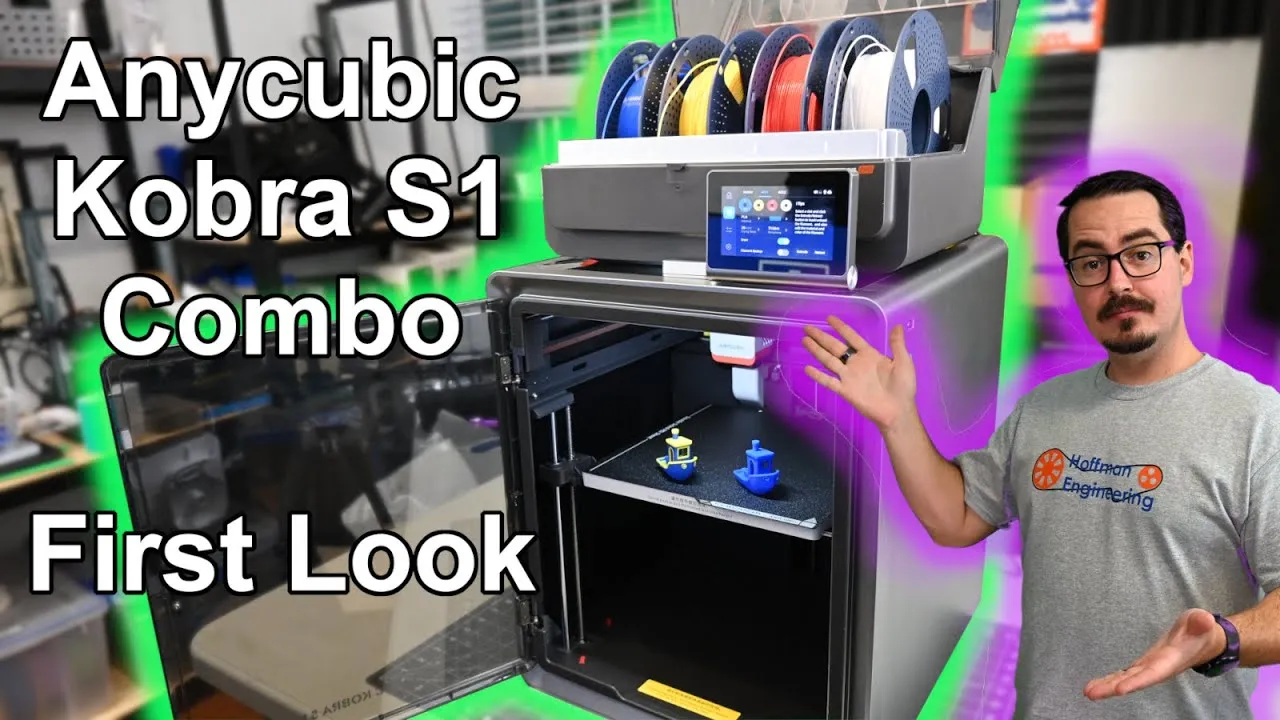
The Anycubic Kobra S1 makes a lot of poop. In my Kobra S1 Combo first look, a two-color Benchy that weighed 10.9 grams left behind 183 grams of purge waste. That flushed filament keeps the old color out of the new one, but the default setting is cautious. This tutorial shows how to change the Kobra S1 flush volume, what happens to purge waste and print time at 1.5, 1.0 and 0.5, and which setting I’d start with.
Why the Kobra S1 Purges So Much Filament
Every time a multicolor print switches filament, the printer pushes out some of the new color to clear the old one from the nozzle. Too little, and the colors mix. Too much, and you’re throwing away plastic and waiting longer for every swap.
Anycubic tuned the Kobra S1 Combo for the worst case: a heavily pigmented black changing to a light color like white. That guarantees clean colors, but on easier color changes it wastes a lot of material. The good news is you can lower the flushing amount from the printer’s menu.
The Test Print and the Slicer Setup
The test model is a red and white calibration cube with exactly 100 filament changes.
You can’t set the flush volume in the slicer. It only lives on the printer’s touchscreen. So I sliced the file once and printed the same G-code three times, changing only the flush volume on the printer.
Because the slicer doesn’t know about flushing, its filament estimate leaves the purge out. It reported 9.04 grams total, which covers the model and the purge tower and nothing else.
It does try to account for the time, though. The slicer showed a flush time of 4 hours 38 minutes and a printing time of 23 minutes 55 seconds. That flush time comes from the Filament Load Time setting, found under the printer’s PrintEnd menu. Anycubic’s default is 126.423 seconds per change. If you lower the flush volume, you can calculate a new load time and get accurate estimates again (more on that below).
How to Change the Flush Volume on the Kobra S1
- Start your multicolor print.
- While it’s running, open the ACE Pro menu on the touchscreen.
- Find the Flush Volume setting. It defaults to 1.5 and goes from 0.1 to 3.0.
- Set the value you want for this print.
For the test, I switched between Sunlu Red PLA and Sunlu White PLA. Sunlu provided the filament. Red pigment tends to hang on in the nozzle, and white shows any mixing right away, so it’s a tough pairing.
Results at 1.5, 1.0 and 0.5 Flush Volume
| Flush volume | Print time | Purge waste | Color quality |
|---|---|---|---|
| 1.5 (default) | 5h 9m 42s | 108.3 g | Clean red and white |
| 1.0 | 4h 37m 24s | 77.5 g | Clean, looks identical to 1.5 |
| 0.5 | 4h 5m 58s | 45.1 g | White turned slightly pink |
Each cube weighed 4.2 grams.
At 1.5, the purge filled the whole waste container. At 1.0, the print finished 32 minutes sooner and the pile was noticeably smaller. At 0.5, it saved another 32 minutes and the pile shrank again. Twice at 0.5, a blob landed on the print bed instead of going down the chute. My guess is that a smaller blob doesn’t always have the weight to eject properly. All three cubes still finished.
Reading the Purge Pile
The piles tell you how the printer is flushing.
- 1.5: lots of pure white and pure red blobs mixed in. The printer flushes two or three times per change: one mixed blob, then a few single-color ones.
- 1.0: still some pure color blobs, but far fewer. It flushes about twice: a mixed blob, then one clean blob.
- 0.5: no pure color blobs at all. Every blob is mixed, so the printer flushes once and moves on before the color has settled. That’s a warning sign.
Checking the Prints for Color Mixing
The 1.5 cube looks great, with pure red and pure white. The 1.0 cube looks the same to me. No mixing that I can see.
The 0.5 cube is different. The white turned slightly pink, and it’s obvious with all three side by side. The red didn’t look affected, but there wasn’t enough purge on the switch to white.
Update the Filament Load Time in the Slicer
Once you settle on a flush volume, update the slicer so its time estimates match. At 1.0, I saved 32 minutes over 100 filament changes, which is 19.2 seconds per change.
| Setting | Filament Load Time |
|---|---|
| Default (1.5 flush volume) | 126.423 s |
| 1.0 flush volume | 107.223 s |
With 107.223 seconds entered, the slicer estimated 4 hours 37 minutes, which is exactly how long the 1.0 print took.
Tips: Which Flush Volume Should You Use?
Dropping from 1.5 to 1.0 cut waste by almost 30 percent and saved 32 minutes, with prints that look the same. You can go lower, but you risk mixed colors, as the 0.5 cube showed.
- Start most filaments at 1.0.
- Inspect the poop. A few pure color blobs mean the color finished changing.
- For lightly pigmented filaments, try going a bit lower.
- For black or silk filaments, bump it up.
This post contains affiliate links. If you buy through them, I may earn a small commission at no extra cost to you.
FAQ
Can you change the flush volume in the Anycubic slicer?
No. On the Kobra S1 the flush volume can only be adjusted on the printer's touchscreen, in the ACE Pro menu while a print is running. The slicer doesn't know about it, so it doesn't count purge waste in its filament total. What you can change in the slicer is the Filament Load Time under the printer's PrintEnd menu, which fixes the time estimate.
What is the best flush volume for the Anycubic Kobra S1?
Start at 1.0. In my red and white test it cut waste from 108.3 grams to 77.5 grams and saved 32 minutes compared to the default 1.5, and the cube looked identical. Go a bit lower for lightly pigmented filaments, and higher for black or silk.
What is the default flush volume on the Kobra S1?
The default is 1.5, and the setting ranges from 0.1 to 3.0. Anycubic set it high enough to cover the worst case, such as a heavily pigmented black switching to white, which produces a lot of purge waste on easier color changes.
How do I know if my flush volume is too low?
Look at the prints and at the purge pile. At 0.5, the white in my test cube turned slightly pink, and every blob in the pile was mixed color, which means the color never stabilized before the printer moved on. A few pure color blobs in the pile tell you the color finished changing.
What Filament Load Time should I use for a 1.0 flush volume?
In my test, dropping to 1.0 saved 19.2 seconds per filament change, so the Filament Load Time went from the default 126.423 seconds to 107.223 seconds. With that value, the slicer estimated 4 hours and 37 minutes, which matched the real print time.